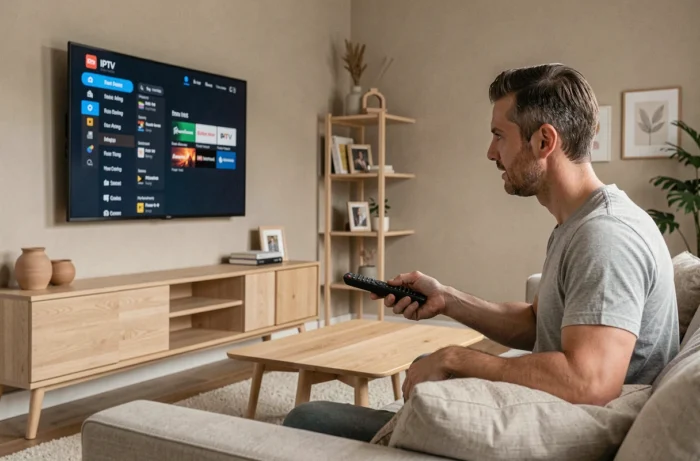
You have an IPTV subscription in hand, but your television displays a desperately empty home screen on the apps side. Connecting IPTV to a TV primarily depends on the system installed on your television, and sometimes on the device you connect to it. This guide details the concrete steps for each situation, including the case where your TV’s store simply does not offer the player you need.
TV without IPTV app in the store: box, HDMI stick, or other player
Your television is new, but the built-in store does not list IPTV Smarters, TiviMate, or any compatible player. This case is common on Samsung (Tizen) and LG (webOS) TVs, where the application catalog is more limited than on Android TV.
Three solutions allow you to bypass this limitation:
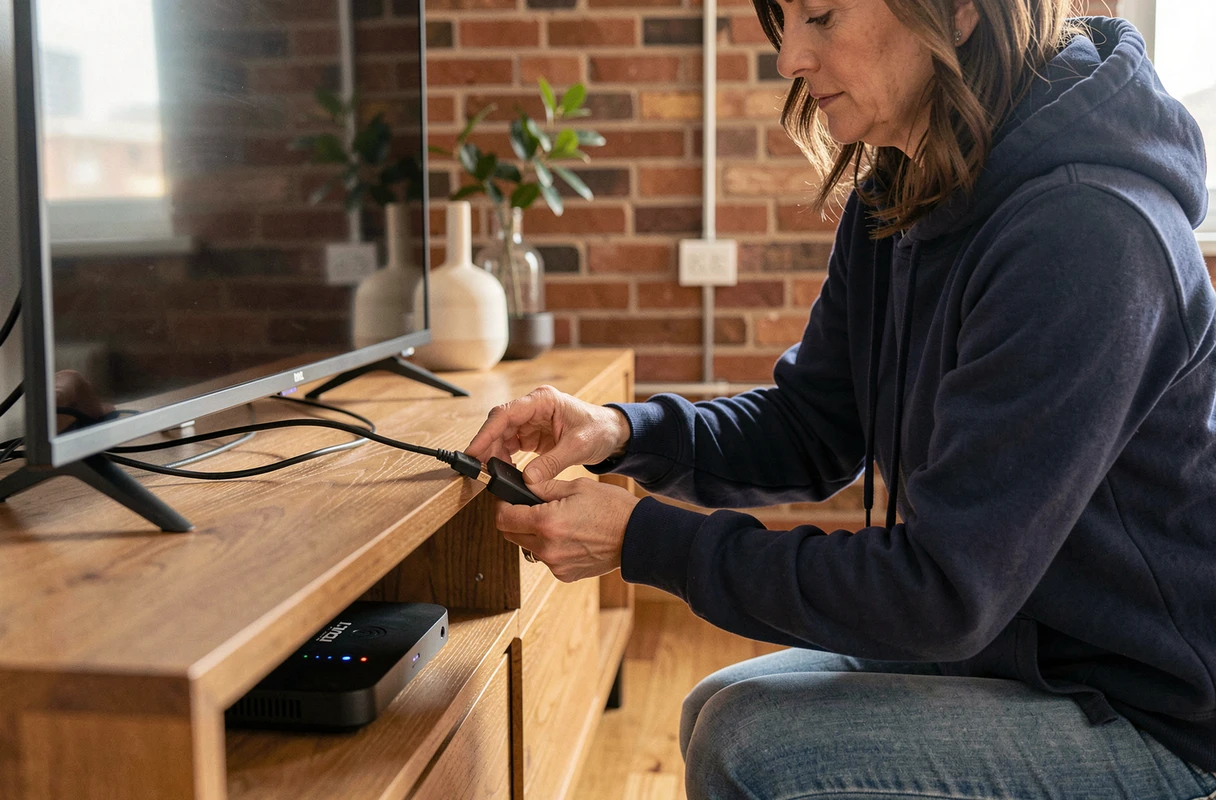
- An Android TV box (Xiaomi TV Box, Nokia Streaming Box, or equivalent) connects to an HDMI port and provides access to the complete Google Play Store, with all available IPTV players.
- An HDMI stick like the Amazon Fire TV Stick offers similar functionality. It plugs behind the television, connects via Wi-Fi, and provides its own app store.
- An old laptop or a Raspberry Pi, connected via HDMI, can run VLC or Kodi with an IPTV module. This option is suitable for users comfortable with a minimum of software configuration.
If you are looking for how to connect IPTV to TV when your television does not have the right store, the Android TV box remains the simplest choice. It transforms any screen with an HDMI port into a compatible smart TV.
Before purchasing an external device, check if your TV has a built-in web browser capable of accessing an online IPTV portal. Some providers offer this option, although the experience is less smooth than with a dedicated app.
Connecting IPTV on Android TV: the most straightforward setup
Sony, TCL, Philips, and some Hisense models run on Android TV (or Google TV). This is the most open environment for IPTV.
Install the player from the Google Play Store
Open the Play Store on your TV. Search for the name of the player recommended by your provider (IPTV Smarters Pro, TiviMate, IBO Player, for example). Press Install, then open the app.
On the first launch, the player asks for your credentials. There are two connection formats depending on the services:
- Connection via Xtream Codes API: you enter a username, a password, and the server URL provided by your subscription.
- Loading an M3U playlist or a URL link: you paste the playlist address into the designated field, and the player retrieves the channel list.
- Activation via MAC address or Device ID: some players display a unique identifier on first startup. You enter it on your provider’s web portal to activate the device.
Activation via MAC address or Device ID often confuses beginners. Make sure to note the code displayed on the screen, go to the activation site indicated by your provider, and enter it in the corresponding field. The channels will then appear in the player.
Check the network before launching a stream
An Ethernet cable eliminates most stream interruptions, especially if you are watching in high definition. If the cable is not feasible, prefer the 5 GHz Wi-Fi band over the 2.4 GHz. The 5 GHz band offers a more stable throughput at short distances, which reduces stuttering and buffering.
To check your connection, run a speed test directly from the TV or from a phone connected to the same network. Insufficient bandwidth results in frequent stops, pixelated images, or a loading loop.
IPTV on Samsung and LG TVs: the specifics of Tizen and webOS stores
Samsung and LG use their own systems. The IPTV application catalog is more limited than on Android TV, but a few players are available.
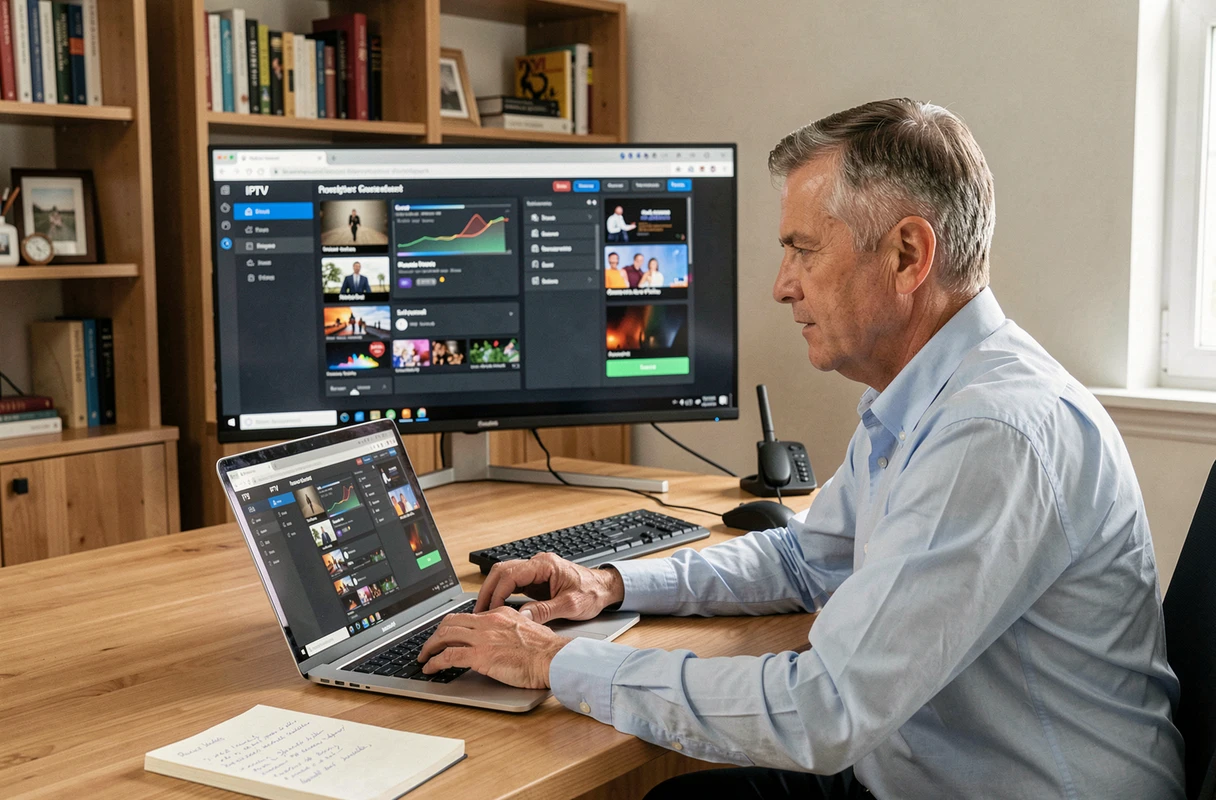
On Samsung (Tizen), Smart IPTV (often abbreviated as “SIPTV”) has long been the reference application. It works by loading an M3U playlist via a web portal. You note the MAC address displayed by the application, go to the developer’s site, and associate your playlist there.
On LG (webOS), the principle is the same with Smart IPTV or SS IPTV. The interface varies but the logic remains the same: retrieve the device identifier, load the playlist via a browser on another screen.
If none of these applications appear in your TV’s store, you revert to the case from the first chapter: an external box connected via HDMI will be the most reliable solution. Do not attempt to install an APK file on a Samsung or LG TV, as these systems do not allow it without risky technical manipulation.
Troubleshooting common IPTV playback issues
A black screen after connection almost always means a problem with credentials or an expired playlist. First, check the validity date of your subscription, then the exact entry of the server URL (a missing letter is enough to block the stream).
Stuttering and buffering come from the network, not the player. Before changing applications, test your bandwidth. Switch to Ethernet if possible. If you remain on Wi-Fi, move the router closer or disable devices that consume bandwidth on the same network.
A “channel unavailable” message on only a few streams indicates a problem on the provider’s server side. Test other channels to confirm. If the entire bouquet is affected, contact your subscription support.
The choice of player can also make a difference. Some players handle heavy streams better than others. Testing two different players allows for quick identification of a software issue. IPTV Smarters and TiviMate do not use the same decoding engine, and results vary depending on the streams.
Lastly, a often overlooked point: updating the firmware of your TV or box. An outdated system can cause incompatibilities with recent applications or even prevent their installation.